دليل المتسوق الخفي
كيف تسجّل زيارتك للفرع من جوالك
١. ما هذا؟
تم التعاقد معك من قبل ماركست كمتسوق خفي لمطاعم دانك ساندوتش. بعد كل زيارة لفرع، تسجّل ما شاهدته في نموذج قصير من جوالك، بالعربية أو الإنجليزية. تُحتسب النتيجة تلقائياً وتراجعها إدارة خدمة العملاء (CSD). لا تحتاج إلى تطبيق أو حساب.
٢. قبل الزيارة
- افتح الرابط الذي وصلك. إذا كان يحتوي على رمز الفرع، فسيكون الفرع محدداً مسبقاً.
- تصرّف كعميل عادي. لا تخبر الموظفين أنك تقوم بتقييم.
- سجّل وقت وصولك، واسم أو رقم الموظف الذي يخدمك من بطاقته، والمدة التي استغرقها الطلب.
- احتفظ بالفاتورة، ستحتاج إلى تصويرها.
٣. الصور المطلوبة
يتم ضغط الصور على جوالك قبل الإرسال، لذا فهي سريعة حتى على بيانات الجوال. التقطها بهدوء ودون لفت الانتباه.
- دائماً: الفاتورة (مع محفظة دانك الخضراء إن قُدّمت) والطعام.
- إذا كانت الواجهة الخارجية غير نظيفة: صورة للواجهة.
- إذا كان في الفرع دورة مياه: صورة لدورة المياه، وصورة لجدول التنظيف خلف الباب.
- إذا طلبت القفازات وحصلت عليها: صورة للقفازات.
- اختياري: منطقة الجلوس.
٤. تعبئة النموذج
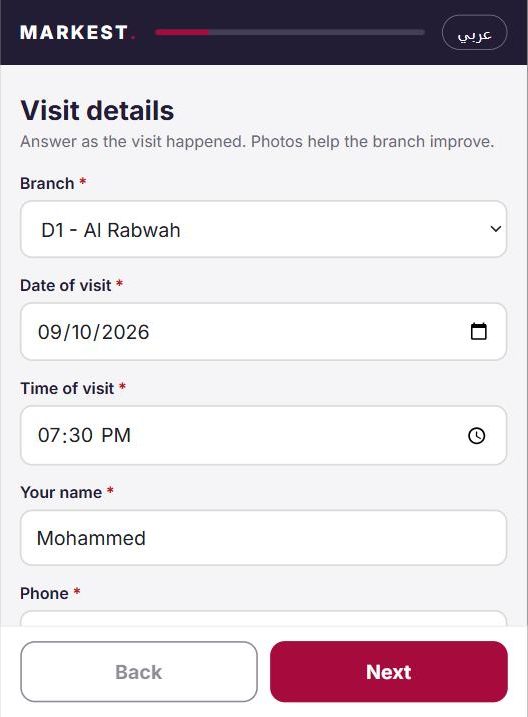
يتكوّن النموذج من أربع شاشات قصيرة. الشريط في الأعلى يوضح تقدمك. اضغط الزر في الأعلى للتبديل بين العربية والإنجليزية في أي وقت.
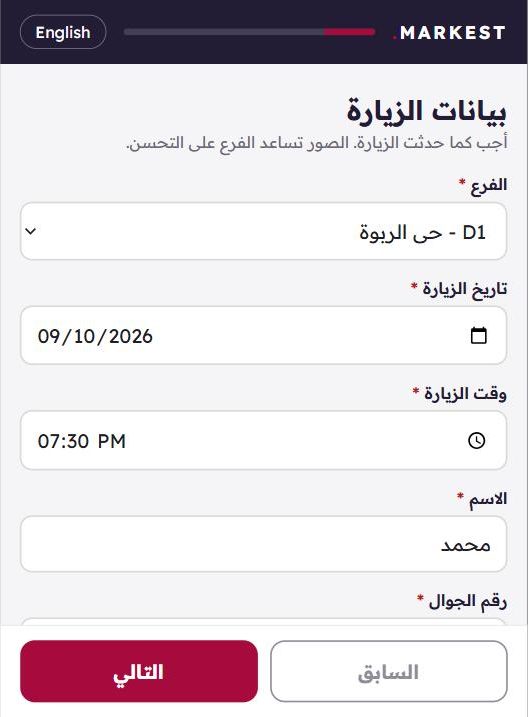
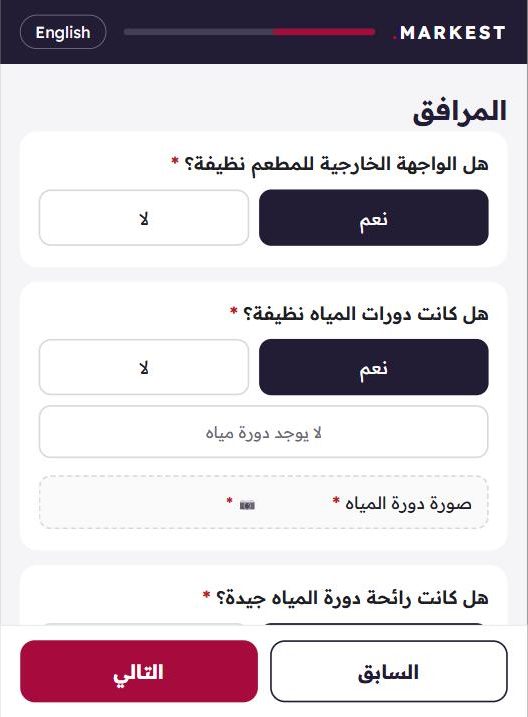
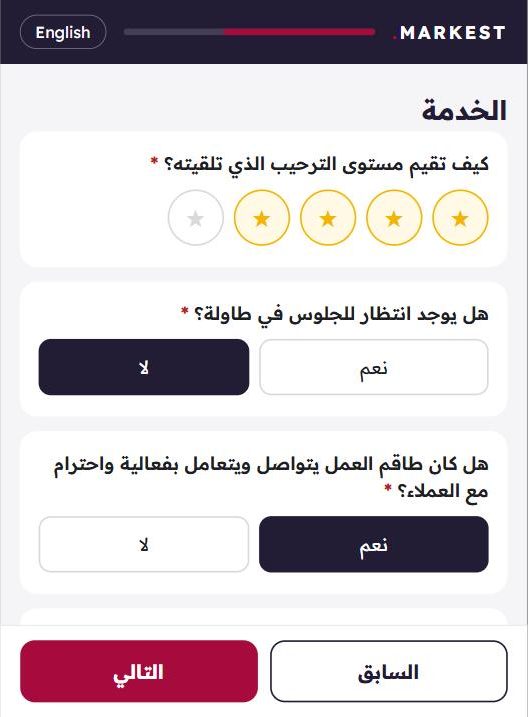
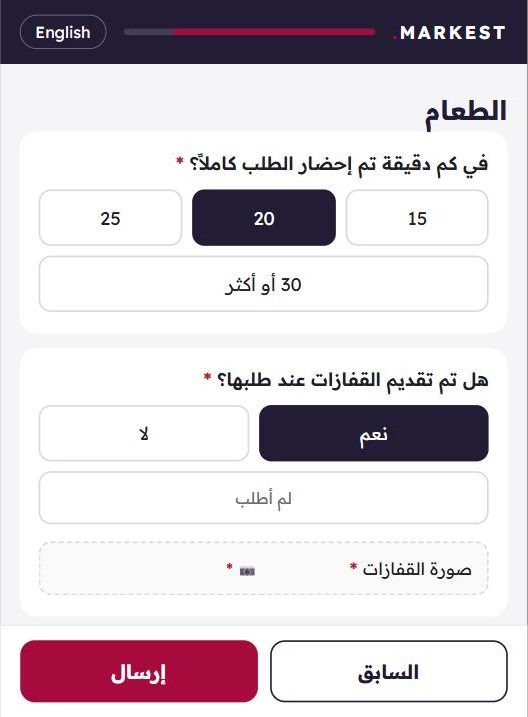
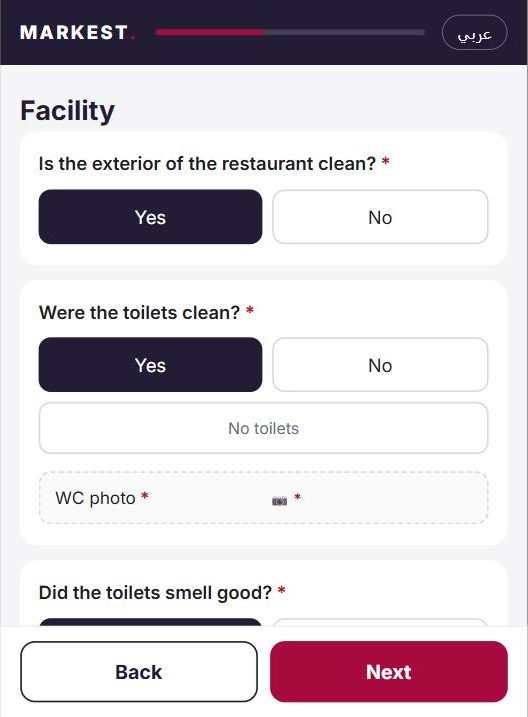
الأسئلة المعلّمة بنجمة حمراء إلزامية. عند اختيار نعم أو لا قد تظهر أسئلة إضافية تحتها (مثل مربع السبب عندما يكون التقييم ٣ نجوم أو أقل).
٥. إضافة صورة
اضغط على مربع الصورة المنقّط. سيسألك جوالك إن كنت تريد التقاط صورة جديدة أو اختيار صورة من المعرض. عند إرفاق الصورة يتحول المربع إلى اللون الأخضر مع علامة صح. لاستبدالها اضغط المربع مرة أخرى.
٦. إذا أغلقت الصفحة بالخطأ
إجاباتك تُحفظ على جوالك تلقائياً. عند فتح الرابط مرة أخرى تكمل من حيث توقفت. الصور لا تُحفظ، فستحتاج إلى إرفاقها من جديد.
٧. الإرسال
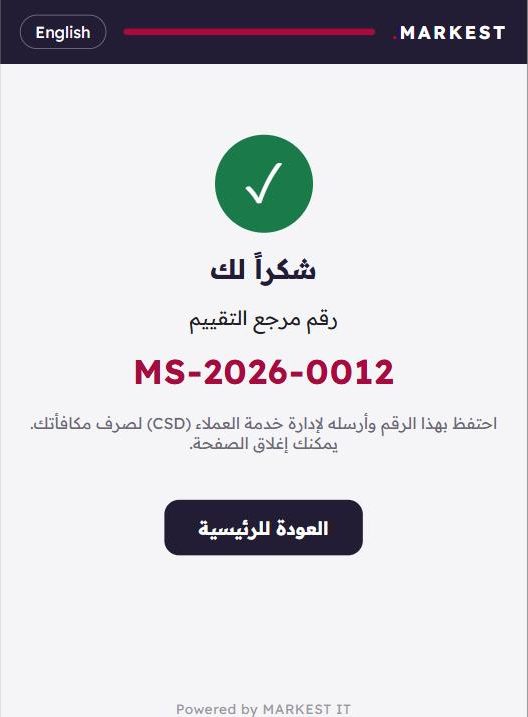
في الشاشة الأخيرة اضغط إرسال. إذا كان هناك نقص، تظهر رسالة حمراء تذكر العناصر الناقصة. عند قبول التقييم يظهر لك رقم مرجعي مثل MS-2026-0012.
٨. القواعد
- تقييم واحد لكل فرع في اليوم من نفس رقم الجوال. الإرسال الثاني لنفس الزيارة يُرفض.
- تاريخ الزيارة يجب أن يكون اليوم أو خلال الشهر الماضي.
- أجب بما حدث فعلاً. التقييمات تُراجع وقد تُرفض إذا تعذّر التحقق منها.
- يجب أن تكون الصور واضحة وملتقطة أثناء الزيارة.
٩. المشاكل
- "تعذر تحميل الفروع": تأكد من اتصال الإنترنت وافتح الرابط مرة أخرى.
- "تعذر الإرسال": إجاباتك محفوظة؛ انتظر قليلاً واضغط إرسال مرة أخرى.
- "تم استلام تقييم لهذا الفرع في هذا التاريخ مسبقاً": الزيارة مسجلة بالفعل؛ تواصل مع إدارة خدمة العملاء (CSD) إن كنت ترى أن هذا خطأ.
للتواصل: إدارة خدمة العملاء (CSD)، raghad.o@markest.sa
Mystery Shopper Guide
How to record a branch visit from your phone
1. What this is
You have been engaged by Markest as a mystery shopper for DANK Sandwich. After each branch visit you record what you saw in a short online form, from your phone, in Arabic or English. Every answer is scored automatically and reviewed by the customer service department (CSD). You do not need an app or an account.
2. Before you go
- Open the link you were given. If it came with a branch code, the branch is already selected for you.
- Behave like a normal customer. Do not tell staff you are auditing.
- Note the time you arrived, the name or ID on the badge of the employee serving you, and how long the order took.
- Keep the receipt. You will photograph it.
3. Photos you will need
Photos are compressed on your phone before sending, so they are quick even on mobile data. Take them discreetly.
- Always: the bill (with the green DANK wallet if it was given) and the food.
- If the exterior is not clean: a photo of the exterior.
- If the branch has toilets: a photo of the WC, and of the cleaning checklist behind the door.
- If you asked for gloves and received them: a photo of the gloves.
- Optional: the seating area.
4. Filling the form
The form has four short screens. The bar at the top shows your progress. Tap the button in the header to switch between Arabic and English at any time.
Questions marked with a red star are required. When you answer Yes or No, extra questions may appear underneath (for example, a reason box when a rating is 3 stars or less).
5. Adding a photo
Tap a dashed photo box. Your phone asks whether to take a new photo or choose one from the gallery. When a photo is attached the box turns green with a tick. To replace it, tap the box again.
6. If you close the page by mistake
Your answers are saved on your phone automatically. When you open the link again you continue where you stopped. Photos are not saved, so you will need to attach them again.
7. Submitting
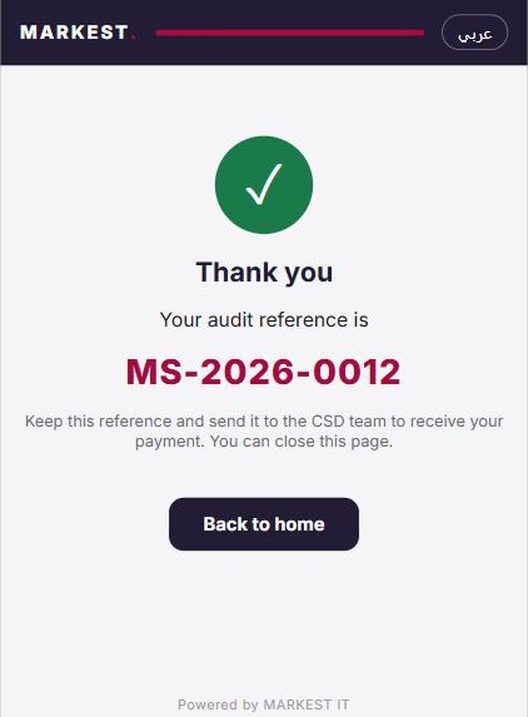
On the last screen tap Submit. If something is missing, a red message names the missing items. When the audit is accepted you see a reference number such as MS-2026-0012.
8. Rules
- One audit per branch per day from the same mobile number. A second submission for the same visit is refused.
- The visit date must be today or within the last month.
- Answer what actually happened. Audits are reviewed and may be rejected if they cannot be verified.
- Photos must be clear and taken during the visit.
9. Problems
- "Could not load branches": check your internet connection and open the link again.
- "Could not send": your answers are kept; wait a moment and tap Submit again.
- "An audit for this branch on this date was already received": the visit is already recorded; contact the CSD team if you think this is wrong.
Contact: CSD team, raghad.o@markest.sa